Sunday, February 26, 2017

NOKIA 3310 IS BACK!! YES THAT'S CORRECT

Today at Mobile World Congress HMD held a press conference in Barcelona to showcase its first Nokia-branded phones.

As expected, the Nokia 3 and Nokia 5 appeared, and the international variants of the ‘phablet’-sized Nokia 6, the Rolls Royce of the range. Rumours that HMD was going to reboot the legendary Nokia 3310 device proved correct.

The new phones are not manufactured and sold by Nokia but by HMD Global, another Finnish company, which has licensed the Nokia brand.

The Nokia 6 has already launched in China. Its international variant has a 5.5-inch display, Qualcomm Snapdragon 430 processor, 4GB RAM+64GB storage, 16 MP rear camera+8MP front camera and 3000 mAh battery. Nokia 6 will cost 229 Euros and the Nokia 6 Art 299 euros.

Nokia unveiled its Ozo, their 360-degree camera for virtual reality. Nokia also talked about Withings, which it owns, and its plans for healthcare. Withings products will now carry the Nokia brand name as will as new Nokia Health Mate app. Nokia CEO Rajeev Suri outlined plans for the Nokia Home hub.

HMD Global CEO Arto Nummela said the Nokia 6 was sold out in 23 seconds in China during the first sales. The Nokia 6 has a special “Art black” version. The Nokia 5 was also announced but this has a smaller 5.2-inch display and comes in blue, copper, black and silver colours. Priced at 189 Euros.

Nokia 3 has a 5-inch HD display, Gorilla Glass, with an 8MP selfie camera. The price will be 139 Euros. All of the devices will be available from Q2 of 2017 and all run pure Android Nougat. The 5 has an 8MB sensor from camera with a wide-angle for selfies.

Scant information was given about the re-boot of the 3310 other than it will have a massive 22hrs talk time (10 times more than the version in the 90s), 1 month standby time, Snake and the old Nokia Ringtone.

What’s the upshot? HMD Global is using the Nokia brand to gun for the low-end, mid-range segment of the market, with pure Android, premium built devices and all will get Google Assistant.

Thursday, February 23, 2017

How Google is trying to make SMS sexy again

Credit: Google and The Next Web


Messaging apps are constantly adding functionality to allow you to do more than simply chat with your contacts. But now, Google is going all-out to champion SMS as the standard of the future for mobile users.

The company has imaginatively rebranded its Messenger app, which previously handled SMS messages on Android, to ‘Android Messages’. Beyond the name change, there are also a bunch of iMessage-like features that you’ll be able to experience soon.

The Verge reports that Google has rolled out a new platform based on Rich Communications Services (RCS) tech to allow businesses to “brand text messages, alerts and other communications, in addition to giving them access to features not available through SMS, such as group texting, high-resolution photos, and read receipts.”

That means you’ll be able to receive things like travel boarding passes along with QR codes, as well as options to top up your mobile data right within Android Messages. Gamestop, Time Inc., Virgin Trains and Walgreens will be among the first to deliver enhanced messages through the new platform. Google’s app already supports RCS; Android Police noted that the feature was turned on last November.

This is mostly thanks to Jibe Mobile, the RCS service provider that Google acquired in 2015.  That firm’s CEO, Amir Sarhangi, was tasked with expanding RCS support. With his help, Google has convinced several carriers to support the Universal Profile standard to ensure that RCS messages are delivered to customers successfully.

Mobile carriers Deutsche Telekom, Globe, Orange and Vodafone have signed on to preload Android Messages on phones they bundle with their subscriptions. Plus, a large number of manufacturers, including LG, Motorola, Sony, HTC, and Nokia, will also ditch building custom SMS apps; Pixel and Android One devices will also come with Android Messages.

The use of RCS, which is compatible with SMS, ensures that all partner companies’ customers receive the texts even if they don’t have Android Messages installed; they’ll just receive a simpler text message than if they had the app. That negates the need for brands to rely on customers using a specific messaging service when they want to reach them.

Of course, Google’s work isn’t finished yet. It still has to get a lot more buy-in from the likes of carriers like Verizon, T-Mobile and AT&T in the US, numerous others across other regions, as well as major manufacturers Samsung and Apple, before RCS is more widely adopted.

Android Messages is available now from Google Play.

Wednesday, February 22, 2017

Kenya's been schooling the world on mobile money for 10 years

Ten years ago on Tuesday, a gutsy Kenyan company launched a mobile money initiative that would change the lives of millions.
Its name is M-Pesa, with "pesa" meaning money in Swahili.
Think mobile money and your mind will probably jump to NFC-powered payment services from Apple, Samsung and Google. M-Pesa predates all of those and launched before the smartphones they rely on. Four months before Apple's first-generation iPhone went on sale in 2007, Kenyan carrier Safaricom enabled person-to-person mobile payments in the country via M-Pesa.
M-Pesa allows people to store money in a secure digital account and transfer it using their phones, even letting them pay bills and send funds abroad. Authorized agents will swap cash for electronic money and can do the same in reverse. The service is primarily powered by text messages, although an app is also now available for the small number of smartphone users.
A decade after its launch, M-Pesa has expanded to 10 countries, boasts 29.5 million active users and processes up to 614 million transactions per month.
The Western world is catching up, but we're taking our sweet time. Mobile payments in the US and Europe still aren't mainstream, with most people preferring physical charge cards or paper money . But this is set to change, according to research firm Forrester. By 2021 mobile payments will have tripled in the US to $282.9 billion and will grow 23 percent in Europe too.
Global competitors like Apple, Google and Samsung are on their way, but M-Pesa has a solid head start.
Vodafone
M-Pesa, meanwhile, is already used in 96 percent of households in Kenya. That's the kind of market penetration most tech companies can only dream of. It has made M-Pesa the de facto example people use when suggesting Africa can "leapfrog" iterative tech development and put itself at the front of the pack.
"We needed to be revolutionary in order to be successful," said Michael Joseph, founding CEO of Safaricom and now the director of mobile money for Vodafone, in an interview. "If we applied western standards to all of the things we do, we would probably still be in the dark ages in Africa."
Helping the unbanked
As impressive as those stats and milestones are, it's the way M-Pesa has transformed people's lives and created a startup ecosystem in Kenya that cemented the service's reputation. It's also what Joseph is most proud of.
For many M-Pesa users, the service isn't just a debit card equivalent, it's their bank. Not long ago, banks and savings accounts were only for wealthy and middle-class Kenyans. In 2009, M-Pesa savings accounts were introduced and within three months 14 million accounts were set up.
An MIT study published last year estimated that M-Pesa is responsible for lifting two percent of households in Kenya out of poverty. That's equivalent to 194,000 families who now no longer live below the poverty threshold on less than $1.25 per day.
Running alongside M-Pesa are nonprofit campaigns, including a number around women's health. In Kenya, for example, expectant mothers are encouraged to save a small amount for health insurance in a dedicated M-Pesa account, which allows them to give birth in a clinic rather than at home. These projects vary region by region, as well as by country, depending on the given needs of the local people.
From Kenya to India
Key to launching in different markets, said Joseph, was learning how M-Pesa could most benefit local customers and operate within each countries' financial regulations.
In Kenya, for example, the initial six-month trial period was supposed to establish the appetite for microfinancing businesses. Instead, it helped Safaricom uncover what Kenyans wanted most from mobile money: an easy way to send funds home from urban to rural areas. When the service launched in Mozambique, it was the ability to pay utility bills that drove adoption among consumers.
It's India that is proving most tricky, said Joseph. Just like Kenya, people want to be able to send money home to their families. But instead of embracing tech, many people still prefer to physically pass money between family members as they have done for hundreds of years. M-Pesa is the market leader in India, but faces stiff competition from a number of other companies.
Gaining trust and viral success
This tailored approach requires the kind of patience that big multinational tech companies don't often exhibit, said Joseph, who has spent time analyzing the global mobile payments market as a World Bank Fellow.
"In Africa we tend to be much more innovative because we need to be, and we're kind of far from everywhere," said Joseph. "Nobody comes there to look and see what you're doing." As such, Safaricom could spend three to four years turning M-Pesa into a profitable business -- something Joseph hadn't even considered when he first set the project up.
A man sends money through M-Pesa using a simple feature phone.
TONY KARUMBA/AFP/Getty Images
"When we launched it, this was another innovation. It wasn't going to be an invention that would change the world," he said. "Nobody knew how successful it would become, and how it would change people's lives. But it has taken off and gotten a life of its own."
It's not just patience, though. Joseph attributes the success of M-Pesa to many different factors -- the culture of innovation within Safaricom, the Kenyan banking regulators and the country's spirit of entrepreneurialism, to name a few.
There is also trust. Joseph said this is gained by ensuring M-Pesa's tech is the best, no money is ever lost and that the customer is always protected. " I always say to the team, you can't have a dropped call with mobile money," he said.
Joseph recognizes that global competitors like Apple, Google and Samsung are on their way, but he doesn't seem too worried at this point.
"I still think that we know what we're doing at the base of the pyramid," he said, referring to M-Pesa's wide customer base. "We offer financial services to the poor, not just payments. We are trusted which is really, really important. And people like the penetration of M-Pesa. Everybody uses it. It's a viral success."
Credit CNET.com

Sunday, February 19, 2017

HOW TO FIX ''GOOGLE PLAY AUTHENTICATION IS REQUIRED'' ERROR

e "Google Play authentication is required" error is a surprisingly common problem on Android devices. It makes you realize just how much you rely on Google products for your smartphone activity, especially the Play Store. The good news is that it's a super easy problem to fix. Let us show you how to fix this Google Play authentification error in three easy steps.
  • How to solve Google Play Store errors
  • How to disable auto-install of Google Play apps
  • . Simply remove your Google account

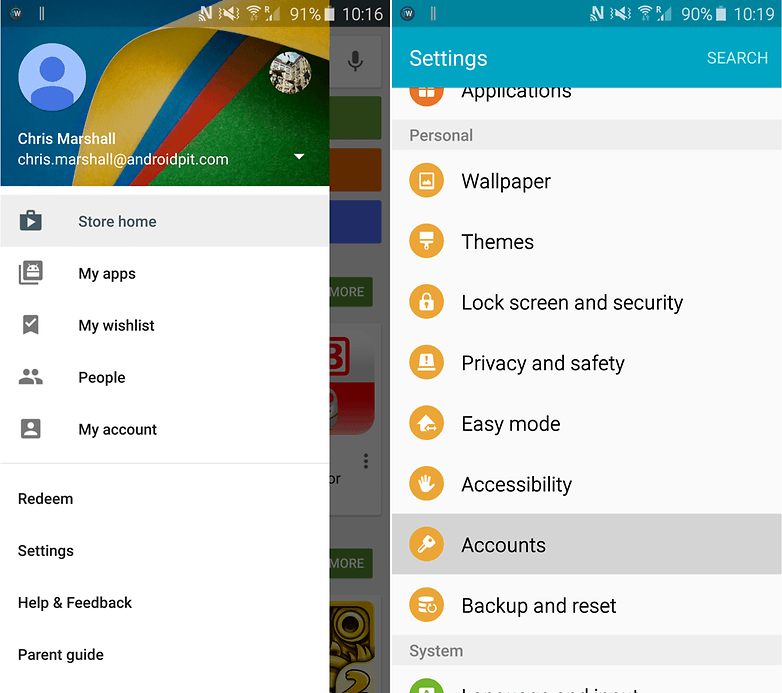
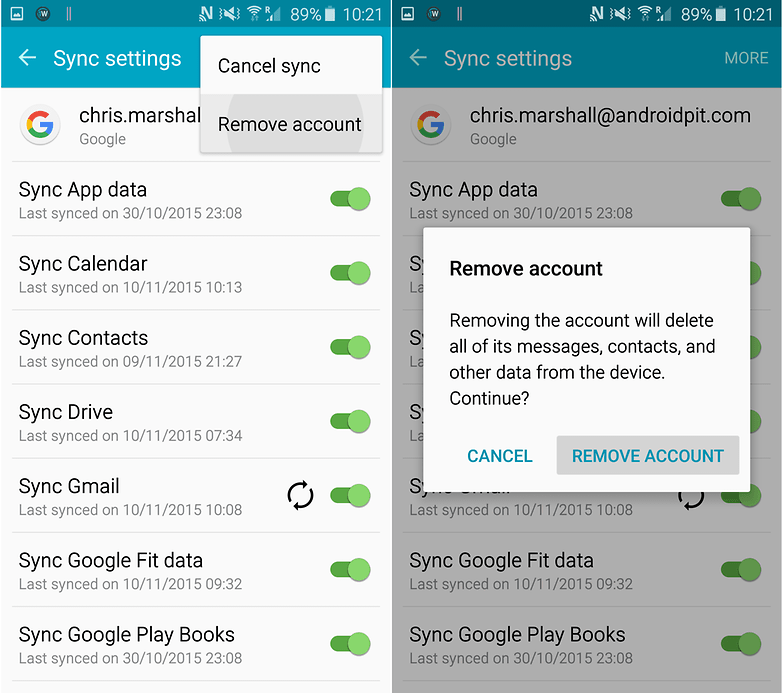
    The error may simply be a sign-in issue, which sometimes occurs when the Play Store is updated. The first trick is to go into your phone's main Settings menu and then Accounts and simply remove the Google account you have registered (the one that's getting the "authentication is required" message). Once you've done this, you can re-add the account and it should work just fine. However, you may need to do this step along with the second step below.
    authentification error guide 1
    Go into Settings > Accounts. 
    authentification error guide 3
    Then remove that account and re-add it. 

    2. Clear data from the Google Play Store

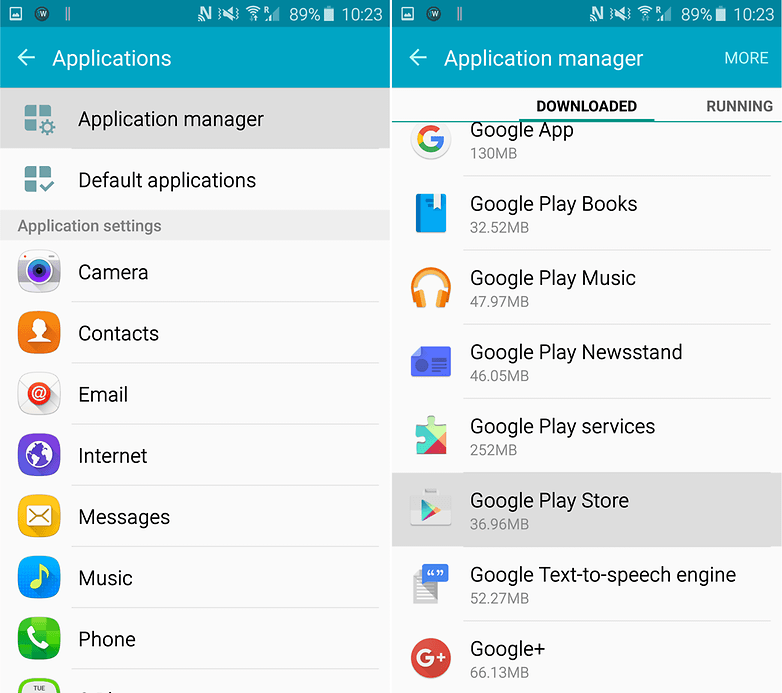
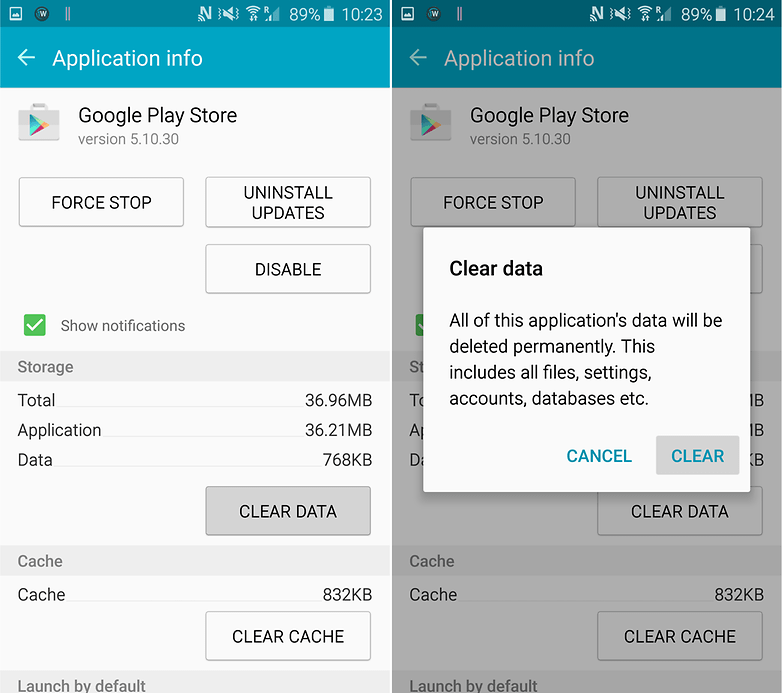
    To clear data from the Play Store, you need to go into Settings and then Applications and find the Google Play Store. Tap it and than select Clear data. (You can try just clearing the cache first, if you like, but clearing data will clear the cache as well). If the previous step didn't work for you, you may find that it does if you repeat it after carrying out this step. 
    authentification error guide 4
    Go into Settings > Applications and select Google Play Store. 
    authentification error guide 5
    Tap on Clear Data and confirm when prompted.

    3. Uninstall Play Store updates

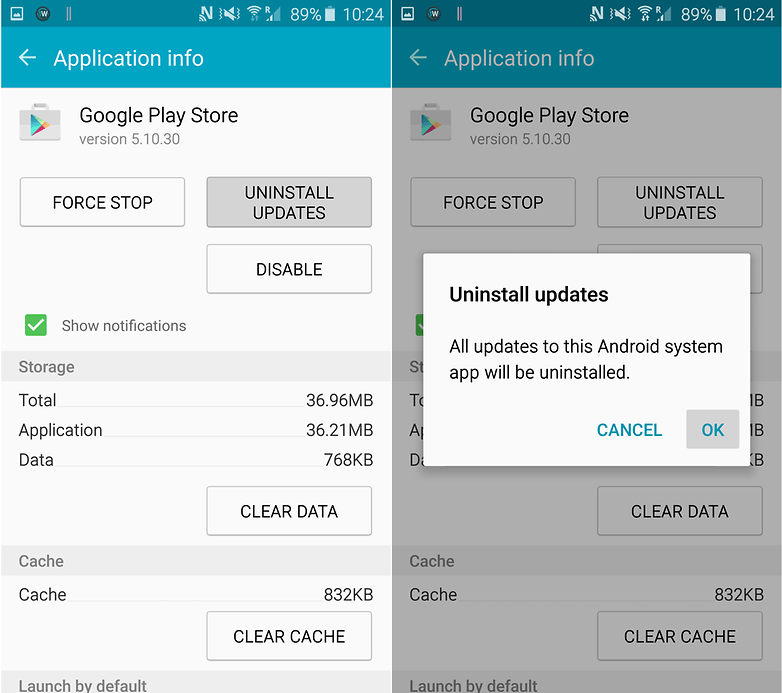
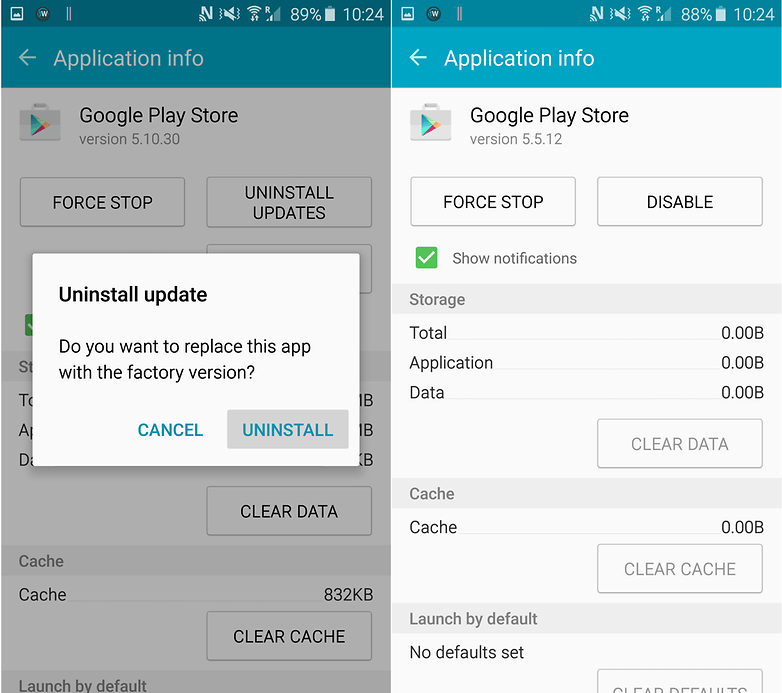
    Sometimes the problem is not with your credentials but the Play Store itself. Go to the Play Store inSettings > Applications and hit Uninstall updates. This will take you back to the original version of the Play Store that was installed on your device. Then, all you need to do to fix the error is install the latest version of the Google Play Store and sign in once again.
    authentification error guide 6
    If the problem lies with the Play Store itself, go into its settings and uninstall the updates.
    authentification error guide 7
    Uninstalling Play Store updates will set it back to the version that came on your phone. 
    If you're still having problems after trying all these steps, run through them again in this order, rebooting your phone between the steps: remove Google account, reboot, uninstall updates, install new Play Store, reboot, add account, and so on. Just keep trying until you the error goes away. 
    Have you suffered from the "authentication is required'' error in Google Play before? How did you solve it? Let us know in the comments.

How to Fix the Google Play Store When It Constantly Force Closes


screenshot_2016-04-04-13-51-16_1024
Nothing is quite as dreadful as seeing that fateful “Unfortunately, Google Play Store has stopped” message…every time you open the Store. Here’s what to do if the Play Store on your phone or tablet just keeps crashing.

Clear the Play Store’s Cache and/or Data

When any app force closes as soon as you open it (or shortly thereafter), the first thing you’ll want to try is clearing that app’s cache. This doesn’t always work—in fact, more often than not it probably won’t fix the issue—but it’s the first thing you should try because it keeps all of your pertinent data (login info, etc.) in place.
First, head into your device’s Settings menu. This is usually accessed by dragging down the notification panel, then tapping the “gear” icon.
Screenshot_20160330-104248
Scroll down to the “Device” category and select “Apps.” This will open the menu entry where you can control all the apps that are installed on the device.
Screenshot_20160404-113421
On Marshmallow, scroll down until you find the “Google Play Store” option. On Lollipop (and older), slide over to the “All” tab, then find the “Google Play Store” option. Tap it to open the Play Store’s app info.
Screenshot_20160404-113703 Screenshot_2016-04-04-11-36-54
There will be a few options here, including “Force Stop,” “Disable,” and possibly even one that reads “Uninstall updates.” Go ahead and tap “Force Stop,” just to make sure it’s not running in the background. A warning will appear telling you that this may cause the app to misbehave—just press “OK.”
Screenshot_20160404-113857
Here’s where things get a little convoluted—depending on what version of Android you’re running, you’ll see totally different options. We’ll outline both Marshmallow and Lollipop here, but the latter should also cover most older versions as well (including KitKat and Jelly Bean).
On Marshmallow, tap the “Storage” option, then tap the “Clear Cache” button. This will erase the Play Store’s cached data, which could possibly be causing the FC (force close) issues.
Screenshot_20160404-144533 Screenshot_20160404-114401
On Lollipop, simply scroll down the screen a little bit and press the “Clear Cache” button.
Screenshot_2016-04-04-11-39-03
Try to open the Play Store. If the force close issue persists, let’s try clearing data.
Follow the same instructions as above, but instead of tapping the “Clear Cache” button, hit “Clear Data.” Keep in mind that this will delete all login info and and other data, so it’s like starting the Play Store for the first time. Your installed apps will continue to function normally, and any applications that you’ve purchased will still be available—this has no effect whatsoever on your Google account, just the app itself.
Once you’ve cleared its data, try opening the app again. It should theoretically open correctly this time. If not, you have one final option.

Install the Newest Version of the Google Play Store

In some instances, something has gone awry that clearing app data and cache simply won’t fix. In that case, installing the newest version of the Play Store should fix things right up.
Before you can pull the newest Play Store APK (Android Package Kit), you’ll need to allow installation of “Unknown Sources.” To do this, jump back into the Settings menu.
Screenshot_20160330-104248
Once there, scroll down to the “Personal” section, and tap the “Security” option.
Screenshot_20160404-114721
Scroll down just a bit, till you see the “Unknown Sources” option. Toggle the slider to enable installation of apps downloaded from the web.
Screenshot_20160404-114805
A warning will be displayed telling you that this can be a dangerous practice that could put your personal data in jeopardy. While accurate, installing third-party apps—or “sideloading,” as it’s called—is a safe practice as long as you only install things from trusted sources. So tap “OK” to enable the feature.
Screenshot_20160404-114855
With that done, head back to the home screen and open your web browser of choice. In this case, we’re using Chrome for Android.
Tap the address bar (at the top), and head to www.apkmirror.com. This is a highly-trusted website that mirrors APKs normally found on Google Play—only free apps are available (no paid content), and each application is verified as legitimate before it’s allowed on the site.
Screenshot_20160404-115116
At the top of the page, tap the magnifying glass icon, which opens the search menu. Type “Play Store” and press enter to search the site.
Screenshot_20160404-115325
The very first option on this page will be the newest version of the Play Store that’s available for download. Tap the down arrow to go the Play Store download page.
Screenshot_20160404-1153401
Scroll a little way down the page till you see the “Download” button. If you’re concerned about the safety of the download, you can tap the “Verified safe to install (read more)” link, which will open a small dialog box with information about the app’s cryptographic signature and legitimacy. Once your curiosity has been satisfied, tap the “Download” button to pull the APK from the site.
Screenshot_20160404-115513 Screenshot_20160404-115538
If this is the first time you’ve downloaded anything on Marshmallow, you may get a popup asking you to allow Chrome (or whatever browser you’re using) to access your media files. Press “OK” to pull the download.
Screenshot_20160404-133546
Another dialog will show up a the bottom of the screen asking you to verify the download. Tap “OK.”
Screenshot_20160404-120020
Once the app is finished downloading (it shouldn’t take long), you’ll find it in the notification shade. Just tap it to start the installation process.
Screenshot_20160404-120519
If, for some reason, tapping the notification doesn’t open the app installer, you can find it in the Downloads folder, which can be access through the shortcut in the app tray.
Screenshot_20160404-125233 Screenshot_20160404-125241
Once the installer is running, just hit “Install” to start the process. It may or may not show a popup asking you to allow Google to check the device for security issues—you can choose to accept or decline, though I generally just let it go ahead since I like to help Google out.
Screenshot_20160404-125246 Screenshot_20160404-125311
Once the installer is finished—and keep in mind it may take several minutes to completely the installation process—just tap “Open” to fire up the newest Play Store.
Screenshot_20160404-134049
With any luck, it will open without force closing.

The app data/cache clearing method above can be used on essentially anything that’s installed on your Android device, which comes in handy if other applications are having issues. Similarly, if that doesn’t fix the issue, just uninstall the app and re-install it from Google Play.

Best android games for 2017 offline and moded


I present you with updated links to the most daring android offline games for 2017 here is the link to Over kill 3
Overkill 3 is an action game for android.
download last version of Overkill 3 Apk + MOD (Unlimited Money) + Data for android from  with direct link
Overkill 3 is a game where you have to complete missions in different regions.
Download android256.blogspot.com
Welcome to the future. It’s grim and dark. The ever oppressing Faction wants everyone to follow and obey. They will stop at nothing. People are scared. Demoralized. The few who fight back are painfully outnumbered.
They need hope. Someone to show them the way. Will you stand up for humanity and fight for its future?
Step into the action of the audio-visual spectacle that is Overkill 3. Lead the Resistance into victory over the evil Faction forces and their brutal killing machines.
> UNPARALLELED GUN CUSTOMIZATION WITH TONS OF GUN UPGRADES AND ATTACHMENTS
Arm yourself with massive arsenal of fully customizable guns ranging from classic shotguns, assault rifles, sniper rifles and machine guns to super-powered futuristic firearms.
> VARIED AND EVOLVING GAMEPLAY
Travel through ever-changing environments, from hostile deserts to abandoned cities and industrial complexes. Fight against loyal Faction soldiers, heavy assault squads and snipers. Use new tactics to win each battle.
> CONSOLE QUALITY GRAPHICS
Experience console quality right on your device. Beautifully rendered world, incredibly detailed gun models, ragdoll physics and special lighting effects are all part of the Overkill 3 experience.
> EPIC BOSS BATTLES & CINEMATICS
As you grow stronger and more dangerous, the Faction will do anything in their power to stop you. Prepare to face dreadful robots and mechanical horrors straight from your worst nightmares.
> 3RD PERSON SHOOTING WITH EASY CONTROLS DESIGNED FOR MOBILE
Get comfortable with easy to use controls designed for mobiles and focus all your attention on shooting.
> STATE OF THE ART NANO-SUITS
Get the protection every soldier deserves! Kickstart the Resistance’s armor research to protect yourself with futuristic bulletproof Nano-Suits.
To survive long enough and become the legendary Resistance leader you will need to master the art of deadly precision. Without it there will be no hero. Only bones left in the sand. Do you have what it takes?

Monday, January 9, 2017

The first Nokia Android smartphone

The first Nokia Android smartphone is already here. Sure, it may not be the old Nokia that many of you loved, but the Finland-based company is still involved in this new mobile adventure. On Sunday, HMD Global, the company that secured the Nokia brand and licensing rights last year, announced the Nokia 6, the first of many Nokia Android handsets that are supposed to launch later this year.
Unfortunately, it’s not all great news. The Nokia 6 is heading to China first, and it’s not clear at this point whether it’ll launch in international markets. The phone isn’t the Android-based iPhone 7 you may have been looking for, as the Nokia 6 will be an affordable mid-ranger that crowds can afford. The phone will sell for 1699 CNY in China, or less than $250.
“The device, which is designed explicitly with the needs of users in mind, combines quality and in-built durability to deliver a real-life premium smartphone experience at a price point for the highly aspirational Chinese consumer,” HMD wrote in a press release.
The phone has a metal unibody made of 6000 series aluminum, and each shel needs some 11 hours of manufacturing time, including machine cutting, anodising, and polishing.
The fact that the Nokia 6 borrows some of its looks from the iPhone doesn’t escape us, including the 2.5D screen and the antenna lines on the back that mimic Apple’s iPhone 7 antennas.
The Nokia 6 features a 5.5-inch screen with Full HD resolution that’s protected by 2.5D Gorilla Glass. When it comes to specs, you’ll find inside a Qualcomm Snapdragon 430 processor, X6 LTE modem, 4GB of RAM, 64GB of storage, 16-megapixel rear camera with phase detection auto focus, 8-megapixel front camera, dual speakers with Dolby Atmos support, and Android 7.0 Nougat running the show.
HMD teases that more Nokia smartphones are coming in the first half of the year, so it’s likely some of them will be launched in international markets as well.

Thursday, January 5, 2017

Which phone to Buy in 2017

By Android256


A new year brings in new changes, new high end smart phones and new flagship. This is the more reason why you must make a tech resolution in 2017. 2016 we saw a lot of smartphones that arouse our expectations before launch, after launching the spec were complete turn down.
A lot of flagships will be reveal in 2017 and if you don’t know, we are already leaving the era of one camera set up, now it is dual camera at the back with one selfie camera
.
>>In 2017, it's time to stop buying flagship phones with 16 and 32 gigabytes of storage.
The reason why I said so is because the stuffs on your phone is getting bigger and not all can be offloaded on SDcard . By the time you check the follow come apps, they already take almost half of the space on the phone, what you’ll have left won’t be enough for you.
More so, smartphones with Android 7.0 out of the box needs more space for duplicate partition; meaning phones with Android Naugat out of the box takes more double space compare to Marshmallow and below.

In other words, let 64GB storage be your standard for any of the Android flagship you’ll be getting.
The long awaited Beast Zero 4 PRO
If worst comes to worst settle for 32GB internal storage.
>> Don’t buy 2GB Ram:
Phone manufacturers are already doing away with 2GB ram smartphones, so you need to let that be in the your past. You need more ram for your smartphones to stop lagging, you need more ram for gaming and multi-tasking. Let 3GB Ram minimum be on your list for 2017.
>> Don’t buy Any 3G enabled smartphone.
In mobile, we consider speed and efficiency. And definitely, smartphones that comes with 3GB ram, 64GB rom will definitely comes with 4G LTE … 3G mobile device is equivalent to Blackberry OS7 that has already been buried. 2017, Don’t buy 3G smartphone.
>> Don’t buy smartphone with battery capacity lower than 3000mAh .
To enjoy all the features above, you need a device with good battery capacity.
Should you see any Android new flagship in 2017 with 16GB or 32GB storage, stay clear of them or atleast dig into the settings to atleast see the available space you have left.
Happy New Year Everyone Wish the best from Infinix


Monday, January 2, 2017

Why root? Things to consider before rooting your android phone

Android is based on the Linux kernel, so right from the start, tinkerers and power users were interested in gaining root access to make changes and graft on new features. In the early days, this was a fairly simple procedure on most devices. There were several apps and tools that could root almost any Android phone or tablet, and you’d be ready to truly master your device in mere minutes. As Android became more capable, the allure of rooting has diminished somewhat — it’s also much harder and riskier than it used to be.

So what are the advantages and risks of rooting these days, and why are some devices resistant to rooting? Let’s see if we can’t figure it out.

The advantages of rooting

Gaining root access on Android is akin to running Windows as an administrator. You have full access to the system directory and can make changes to the way the OS operates. As part of rooting, you install usage manager (SuperSU is the main one right now). These tools are basically the gatekeeper of root access on your phone. When an app requests root, you have to approve it using the root manager.

So what can you do with root specifically? Let’s say there’s a system app that you really don’t like seeing, but it can’t be disabled through the standard method. With root you can run an app like Titanium Backup to delete or permanently hide the app. Titanium can also be used to manually back up all the data for an app or game so you can restore it to another phone. Want to change the way your device’s CPU behaves or alter the system UI? Those also require root. Ad-blocking software on Android needs root access as well (it modifies the Android hosts file to block known ad servers).

Android has more built-in backup smarts than it once did, but having root access ensures you’ll never lose anything again. Not only can you restore “deleted” files, you can make full backups of your apps and system. That’s handy in case your tinkering breaks something, and you have to repair the OS.

The risks of rooting

Rooting your phone or tablet gives you complete control over the system, and that power can be misused if you’re not careful. Android is designed in such a way that it’s hard to break things with a limited user profile. A superuser, however, can really trash things by installing the wrong app or making changes to system files. The security model of Android is also compromised to a certain degree as root apps have much more access to your system. Malware on a rooted phone can access a lot of data. Again, you need to be careful what you install.

For this reason, Google does not officially support rooted devices. There’s even an API called SafetyNet that apps can call on to make sure a device has not been tampered with or compromised by hackers. A number of apps that handle sensitive data will do this check and refuse to run on rooted devices. One of the most prominent examples of this is Android Pay — it cannot even be opened on devices that fail the SafetyNet check. If losing access to high-security apps is a big deal, you might not want to mess around with rooting.

Root methods are sometimes messy and dangerous in their own right. You might brick your device simply trying to root it, and you’ve probably (technically) voided your warranty doing so. Depending on the company, you might still be able to get a device repaired if you damage it attempting a root, but that’s not a guarantee.

Starting in Android 5.0 Lollipop, system updates for some phones (like Nexus and Pixel devices) will only work on stock unrooted devices. This is because of a change to the way Android processes the OTA file. Updates now patch the entire system directory as a single blob, so any changes or extra files (i.e. root) will throw off the verification and the update will abort.

On other phones and tablets, virtually every OTA update you get will wipe out root and block the method from working again. If having root access is really important to you, you might be left waiting on older buggy software while you beg for a new root method or a modded OS update.

Why is rooting so much harder than it used to be?

If you’ve been using Android for a while, you’ve probably noticed gaining root access on most devices is much harder than it once was. There were exploits years back that could root almost any Android device in a few minutes, but that’s much less common now. The last essentially universal exploit was Towelroot in mid-2014, but Google patched that rather quickly.

The reason these exploits are patched so quickly now is that having active exploits on your system is actually a bad thing for most users. These are security holes that can be utilized by malware to take over a device remotely and steal data. Google and the device makers are being responsible when they shut down root methods after they are disclosed. After 2015’s Stagefright issues, there are monthly security patches for some devices like the Pixel and Nexus phones. Carriers and OEMs are also better about rolling out these monthly patches on a semi-monthly basis to patch flaws. Sometimes, that includes root exploits.

Android is more secure, and it takes more work to break that security in a way that can grant root access. As a result of this cat-and-mouse game, root exploits are often pretty involved. You might have to push files to your device over USB, enter terminal commands, and flash modified files.

The effort needed to find, test, and develop exploits of this nature is a big part of the reason some popular devices don’t even have public root methods. That’s not to say there aren’t exploits in these devices, but they’re far too valuable to be given away freely to the community. If you peruse XDA, you might come across one of the many root bounty threads where users pledge thousands of dollars to anyone who can offer a working root method for a phone. This works sometimes, but it’s notoriously hard to collect on these bounties and a few thousand dollars isn’t actually terribly much for a solid exploit.

Anyone who does security testing and research on Android will tell you there’s real demand for non-public exploits among security and forensics firms. A modder could make several times the theoretical value of a root bounty on XDA by selling an exploit to one of these companies. A universal exploit like we had back in the day could be worth tens of thousands easily. Most people just won’t give that away for a pittance.

So should you do it?

If you’re primarily interested in Android because you want to tinker, you should figure that in when you choose a phone. Don’t get something hoping that root method will be released, because you might be waiting a long time for a messy exploit that gets patched right away. There are some devices that are relatively friendly to rooting, like Nexus and Pixel devices. They have unlockable bootloaders and can be rooted without much trouble. They also have system images that can be used to restore the device in case something goes wrong.

If you’re not familiar with Android’s tools and how to fix issues with a command line, you might want to give this some thought. Root can be a lot of fun to play around with, but it can also lead to plenty of frustration as you try to fix errors caused by overzealous modding. The added issues with security lockouts via SafetyNet should also give you pause.

Sunday, December 25, 2016

Infinix Note 3 Review, a grand new entry phone into Uganda


  • The Infinix Note 3, a 6-inch display was launched into uganda in november 2016  and i have put it through all the hoops and have my verdict ready for you..

infinix note 3 boosts a bigger battery

Infinix Note 3 Review: Hardware/Design

What we have here is a shift in design compared to previous Infinix phones. If you think the Note 2 is beautiful, the Note 3 is even more so. What we have here is a well crafted metal unibody. With a 6-inch display, the Note 3 is a big smartphone, but it is a pleasant, solid one. From whatever angle you look at it, it remains beautiful . The beauty that makes us/you keep picking up the device again and again and again and again......
The rear of the phone has the 13 megapixel camera, dual LED flash, and fingerprint scanner. On the left hand side is the eject-able dual-SIM compartment. On the right side we have another eject-able compartment for the micro-SD card, as well as the volume rockers and the power/lock button.
                   

                                     Software

The Infinix Note 3 runs Android 6 Marshmallow under Infinix Mobility’s XOS user interface replacing the XUI on lollipop.
One nifty feature is that from time to time, you are notified of the power intensive apps on the phone.
XOS has a number of apps pre-installed though. These include: Ultra Power, XManager, XAccount, XClub  , XHide and XWeather. While they may provide some utility, depending on your needs, none of them are uninstallable.

                          Photography


The Infinix Note 3 has a rear 13 megapixel lens with dual LED flash and a front-facing 8 megapixel unit with LED flash for selfies. The main camera takes pictures of good quality. Details and colour reproduction are quite good. The surprise here is that the front-facing camera is quite good too. The flash light is not the usual soft flash that most front-facing cameras use. It is a proper flash light, and it produces decent results – better than we have seen in many cases.
We have ended up loving the cameras on the Note 3.
          Display and Multimedia
The Note 3’s 6-inch display has a resolution of 1,080 x 1920. In numbers, that’s 367 ppi. Which is very good. The display comes out really sharp with rich colors. Viewing angles are great too.
As is custom with Infinix devices though, there’s no Gorilla Glass protection or similar here.
There is a dual speaker grill at the bottom end of the phone. The left sided one harbors the mic. Sound production is good but not quite loud enough. We had to plug in an external speaker to enjoy audio from movies. A set of headphones help with that too.

                 Multitasking/Performance


In everyday use, the Infinix Note 3 performs smoothly most of the time. During heavy multitasking, there are moments that it slows down quite a bit. it did it heat up though a little. am  not sure whether that is because of the current hot weather in Uganda.

             Battery life

The Infinix Note 3 is equipped with a 4500 mAh battery. You won’t be worrying about your phone draining fast of battery power. It just keeps going. With fast charge built in, battery and fast charging are strong points of the Infinix Note 3.
Final Words
The Infinix Note 3 is undoubtedly a beautiful device. It is the most beautiful Infinix smartphone till date. But It isn’t all beauty. there’s brawn here too. It ticks all all the right boxes. Good battery life. Big, bright display. Decent cameras. Large internal memory plus memory card slot. Android Marshmallow. A beautiful body and all Ugandans will have a reason to smile when they order one from http://www.kilimall.co.ug


Wednesday, December 21, 2016

What Android phone should an Android developer buy in 2016?

A serious android developer should have more than one phone. Ideally, you should have at least one nexus-like device to test everything. Since the OS is unaltered in the nexii, it’s easy to locate the source of any problems. Then, you should get some extra devices, with more or less ram, different screen size, different brands (go for popular vendors in that case). In general terms:

If you need the phone purely for testing, you could as well go for Genymotion and test on so many devices with different screen sizes and all that.

If you want a ‘new, classy phone', you may try the google pixel. Its from google. Google officially supports android. Google did the hardware. Google did the software. There are nice reviews for the pixel on the internet. You have extra bucks to spend? You might as well go for the Google Pixel

-Keep a low range device (anything with ICS, the minimum supported version now).

-A mid range device (an old flagship or nexus 4 or 5) . You should do the bulk of the testing here.

-A high specs device (a nexus or pixel). Ideally, this one should be in the latest android version possible.